Kinesis
Hydrolix Projects and Tables can continuously ingest data from one or more AWS Kinesis streams. The cluster can run on AWS or any other cloud provider.
Basic steps⚓︎
- Create a Project/Table.
- Create a Transform.
- Configure Kinesis access.
- Configure a checkpoint database. The Hydrolix Kinesis client needs a checkpoint database to track progress.
- Use AWS DynamoDB.
- Use GCP Firestore in Datastore mode.
- Configure the Hydrolix Kinesis source and adjust the scale.
These instructions assumes that project, table, and transform are already configured.
Configure Kinesis access⚓︎
To access the Kinesis queue, your Hydrolix cluster requires an AWS user and role holding read and write permissions to these services in your account.
Create an AWS user and role⚓︎
This can be done from the AWS IAM Console. See AWS Identity and Access Management (IAM) Documentation.
Make sure to record your AWS Access Key ID and Secret Access Key
Hydrolix requires these to connect to the Kinesis service.
AWS shows this to you only once during key creation.
Assign Kinesis permissions⚓︎
For Kinesis access, ensure the user has permission to perform these actions:
kinesis:GetRecordskinesis:GetShardIteratorkinesis:DescribeStreamkinesis:ListShards
If you are also using an AWS DynamoDB checkpoint, assign DynamoDB permissions.
Configure a checkpoint database⚓︎
AWS DynamoDB⚓︎
Use these instructions to create an AWS DynamoDB table.
DynamoDB is a good choice if your Hydrolix cluster is running on Amazon Elastic Kubernetes Service (EKS).
AWS DynamoDB prerequisites⚓︎
To load data into Hydrolix from Kinesis, you will need the following in your AWS Account:
- A DynamoDB table to store checkpoint information
- An AWS user/role with access to DynamoDB and Kinesis
- The Kinesis Amazon Resource Name (ARN) and region of your Kinesis stream
Create the DynamoDB table⚓︎
Follow instructions at Setting up DynamoDB to create the DynamoDB table.
These are Hydrolix recommended options:
| Option | Value |
|---|---|
| Table Name | Hydrolix suggests using your client Id with the string _kinesis_check_point appended for example, hdxcli-123456_kinesis_check_point |
| Partition Key | StreamShard |
| Settings | Select 'Customize settings' |
| Table Class | DynamoDB Standard |
| Read/Write capacity settings | On-demand |
Record your DynamoDB ARN
Make sure to record your new DynamoDB ARN for use in the Kinesis table source checkpointer setting.
Assign DynamoDB permissions⚓︎
Assign DynamoDB permissions to the AWS user with Kinesis access, configured in an earlier step.
Ensure the user also has permission to perform these DynamoDB actions:
dynamodb:PutItemdynamodb:DescribeTabledynamodb:GetItem
Record your Kinesis ARN⚓︎
Retrieve your Kinesis ARN from the AWS console. You will need this later when you configure the Hydrolix platform.
GCP Firestore in Datastore mode⚓︎
Use these instructions to create a GCP Firestore in Datastore mode table.
GCP Firestore in Datastore mode is a good choice if your Hydrolix cluster is running on Google Kubernetes Engine (GKE).
Unlike the AWS DynamoDB checkpointer, you don't need to create the checkpoint table itself. GCP Firestore in Datastore mode creates the table the first time Hydrolix writes a checkpoint to it, using the table name from checkpointer.name.
GCP Firestore in Datastore mode prerequisites⚓︎
- A GCP Firestore in Datastore mode database to hold checkpoint information
- The Google service account used by the Hydrolix cluster must have access to the database
- The checkpoint table name
Add Datastore role⚓︎
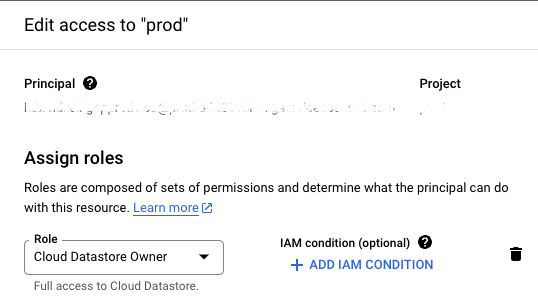
Edit the Google Cloud service account created and add the role Cloud Datastore Owner (roles/datastore.owner).
Configure the Hydrolix Kinesis source⚓︎
Create your Kinesis source in Hydrolix using the API endpoint Create Kinesis Source within the API.
A Kinesis table source object requires these properties
| Property | Description | Example |
|---|---|---|
name |
Name of your Kinesis source | myKinesisSource |
pool_name |
Name for the pool that will service the source | myKinesisPool |
k8s_deployment |
Object describing the cpu/memory and service for the pool (kinesis-peer) | {"cpu": 1,"memory": "10Gi","service": "kinesis-peer"} |
type |
The method to retrieve stream data. For Kinesis, always pull |
pull |
subtype |
The type of data source. For Kinesis, always kinesis |
kinesis |
transform |
The name of the transform to use in ingesting data | myTransform |
table |
The project and table to import the data into | myproject.mytable |
settings |
A mapping containing detailed settings information |
Checkpointer settings⚓︎
| Setting | Description | Example |
|---|---|---|
stream_name |
ARN for the Kinesis stream | {"stream_name": "arn:aws:kinesis:us-east-2:1234567890:stream/test-kinesis"} |
region |
Region for the Kinesis stream | {"region": "us-east-2"} |
checkpointer |
ARN for the DynamoDB for AWS | {"checkpointer": {"name": "arn:aws:dynamodb:us-east-2:1234567890:table/test-kinesis"} |
aws_key |
AWS Key used to connect to the Kinesis stream | |
aws_secret |
AWS Secret used to connect to the Kinesis stream |
| Setting | Description | Example |
|---|---|---|
stream_name |
ARN for the Kinesis stream | {"stream_name": "arn:aws:kinesis:us-east-2:1234567890:stream/test-kinesis"} |
region |
Region for the Kinesis stream | {"region": "us-east-2"} |
checkpointer |
Checkpoint table name for GCP Firestore in Datastore mode | {"checkpointer": {"name": "https://datastore.googleapis.com/hdx-kinesis"} |
checkpointer.datastore_project_id |
GCP project ID that hosts the checkpoint table | {"checkpointer": {"datastore_project_id": "my-gcp-project"}} |
If checkpointer.datastore_project_id is omitted, the Datastore client library detects the project from its runtime credentials, which typically matches the project hosting the Hydrolix cluster. Set checkpointer.datastore_project_id explicitly when the checkpoint table lives in a different GCP project than the one Hydrolix would otherwise detect.
Create a Kinesis source⚓︎
Use the access key and checkpoint database identifier in the Create kinesis source endpoint.
Hydrolix adds the credentials into a Kubernetes secret.
Kinesis Pool Creation Response Example When Using DynamoDB
aws_creds_key is the name of the secret in Kubernetes that stores your credentials.
Scale the Kinesis service⚓︎
The default scale profiles for Hydrolix set the scale of the kinesis-peers to zero, since they're not needed for every Hydrolix cluster. To scale the service, edit hydrolixcluster.yaml:
Edit the replica count to adjust resources devoted to Kinesis processing using the full pool name from the API response.
See Scale your Cluster and Scale Profiles for more information.
Special considerations⚓︎
Specify an alternative AWS role⚓︎
If your Kinesis configuration and your Hydrolix configuration don't share AWS roles, you need a way to specify an alternative AWS role ARN for accessing your Kinesis stream. Create a field named aws_role_arn within your Kinesis configuration settings. Use the full ARN as the value:
You can also transmit credentials in the aws_key and aws_secret fields of your Kinesis configuration settings. Hydrolix stores these values in a Kubernetes secret as a JSON object. You can access this secret using the aws_creds_key value.
You can also specify the ARN, aws_key, and aws_secret. Simply add all three fields given in the two examples above.
Credential Order
Hydrolix first attempts to connect to your Kinesis stream using the ARN stored in aws_role_arn. If that doesn't work, Hydrolix attempts to connect using the environment variable stored in aws_creds. If neither method works, Hydrolix attempts to connect to the Kinesis stream without authentication.
AWS CloudWatch ingest using Kinesis⚓︎
AWS CloudWatch uses a special format that passes multiple logs at a time through the logEvents message field. This requires special handling in Hydrolix.
Hydrolix supports a special subtype of transform to handle this log form. In your transform, assign settings.format_details.subtype a value of "cloudwatch":
When you use the cloudwatch subtype, each element of the array in the logEvents field becomes a separate ingested row, handled separately by your transform. Hydrolix deserializes the JSON in the "message" field of each logEvents element. This becomes the value of the logEvent field in the new log messages. Consider another example of the CloudWatch format: following logEvents array within a CloudWatch message:
The first index of the logEvents field becomes the following ingested row:
Scaling⚓︎
To scale the Kubernetes deployment for the ingest pool used by this source, including the number of replicas, memory, and CPU, see the scaling resource pools page.