Manage Service Accounts
This page describes how to create, manage, and delete service accounts and their corresponding authorization tokens using both the Hydrolix UI and the Config API.
For an overview of service accounts and how to use them, see Service Accounts.
The endpoints⚓︎
| Endpoint | Description |
|---|---|
/service_accounts/ |
Supports listing, creating, retrieving, and deleting service accounts, as well as generating and revoking tokens. |
/service_account_tokens/ |
Lists the service account token metadata for all service accounts. Use query parameters for ordering, pagination, and to narrow results by revocation status or service account UUID. |
For operations on user accounts, see API endpoints for users and service accounts.
Manage service accounts⚓︎
| Action | UI | API |
|---|---|---|
| View a service account | View in UI | View with API |
| Create a service account | Create in UI | Create with API |
| Assign roles | Assign roles in UI | Assign roles with API |
| Issue a token | Issue token in UI | Issue token with API |
| View token metadata | Unavailable | List token metadata |
| Revoke tokens | Unavailable | Revoke tokens with API |
| Delete a service account | Delete in UI | Delete with API |
View service accounts⚓︎
View in UI⚓︎
Users with the view_serviceaccount permissions can see all service accounts in the cluster.
Tokens are never viewable after generation whether sent to the API or UI. The user creating the token is responsible for secure management of the tokens.
- Log in to the portal.
- Click Security in the left sidebar.
- Click Service Accounts in the top bar.
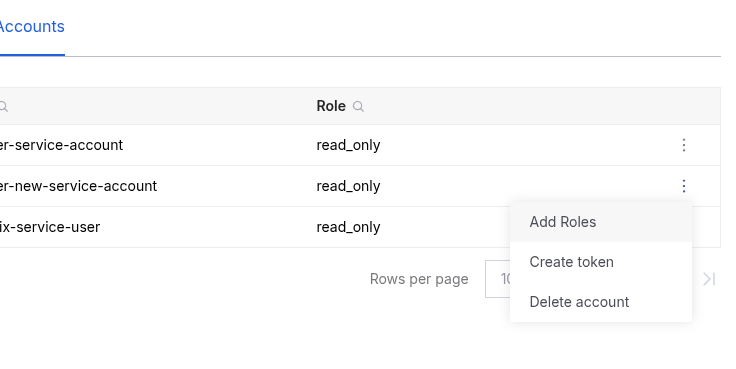
From this page, use the vertical ellipsis (⋮) on each entry to Add Roles, Create token, or Delete account.
View with API⚓︎
Show a single service account or list all.
List all service accounts⚓︎
Use the endpoint List service accounts.
Request a specific service account by its UUID⚓︎
Use the endpoint Retrieve service account with the service account UUID in the URL.
Create service accounts⚓︎
Create in UI⚓︎
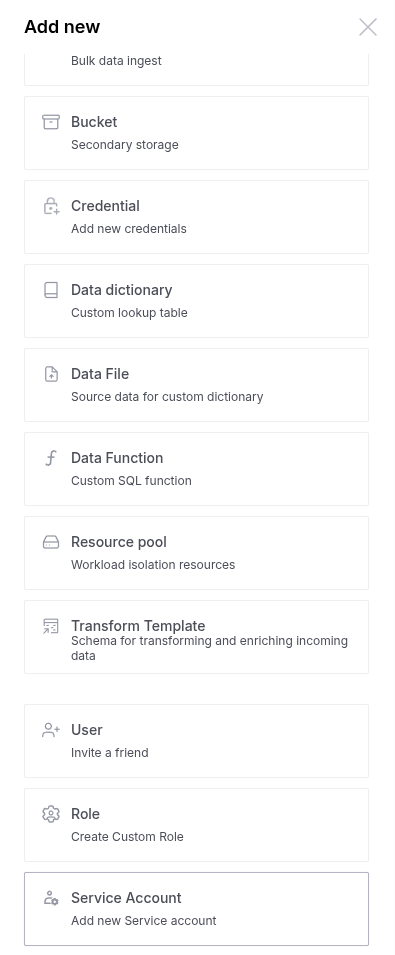
- In the top right corner of the screen, click the + Add new button.
- Select the Service Account option in the right sidebar.
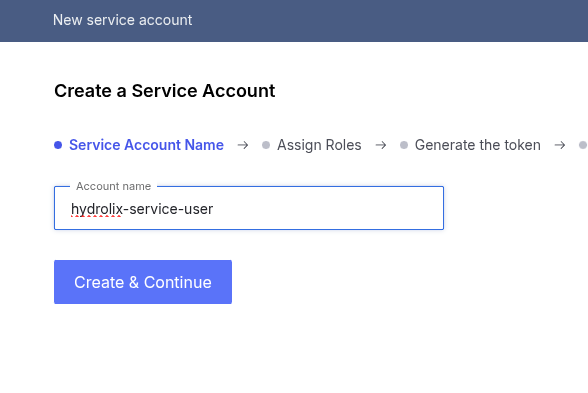
- Enter a unique service account name.
- Click Create & Continue.
400 response code
If you receive a 400 response code and the message Invalid service account name, make sure the Account name field conforms to the service account name restrictions.
The two subsequent steps in the service account creation workflow support assignment of roles to the service account and generation of a first token. These steps can be skipped and completed later.
Create with API⚓︎
The endpoint Create service account requires the name attribute in the POST body. See service account name restrictions.
Service account name restrictions⚓︎
Hydrolix enforces the following requirements on service account names:
- Minimum length:
3 - Maximum length:
256(v6.0and above).64(v5.11and below) - Valid characters: Characters must be lowercase ASCII letters, digits, hyphens, and underscores.
- Uniqueness: The service account name must be unique.
- Immutability: The service account name can't be changed once set.
Assign roles⚓︎
Assign roles in UI⚓︎
By default a service account has no roles at creation. Users must have an initial role, but not service accounts. Use the account permissions (RBAC) system to group permissions into roles to be attached to service or user accounts.
- Log in to the portal.
- Click Security in the left sidebar.
- Click Service Accounts in the top bar.
- Use the vertical ellipsis (⋮) to select Add Roles.
- Enter all roles in the Select role multiselect drop-down.
- Click Assign roles.
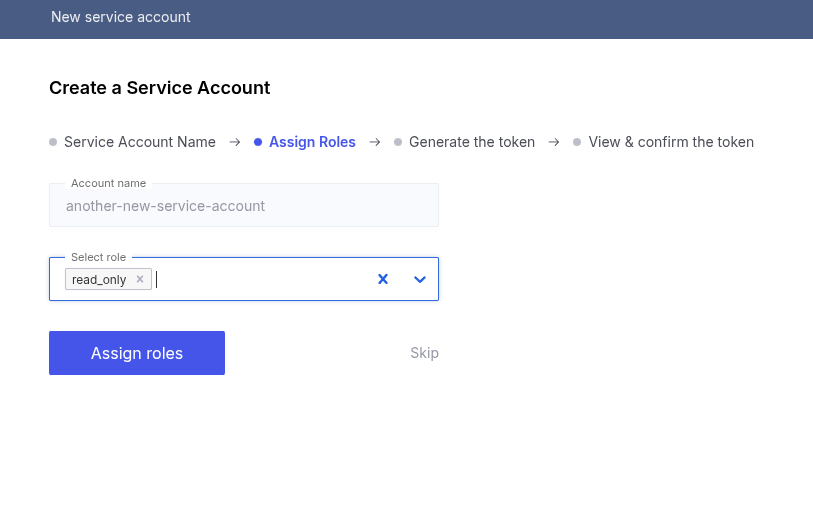
Role assignment occurs immediately. Since permissions are checked at time of use, subsequent requests will experience the new permissions.
Assign roles with API⚓︎
The endpoint Add roles to user requires the account UUID in the path and a list of roles in the POST body.
Service account tokens⚓︎
The following sections discuss how to create, list, and revoke tokens associated with service accounts.
Issue token in the UI⚓︎
For information about token expiration and validity, see Service account token lifecycle.
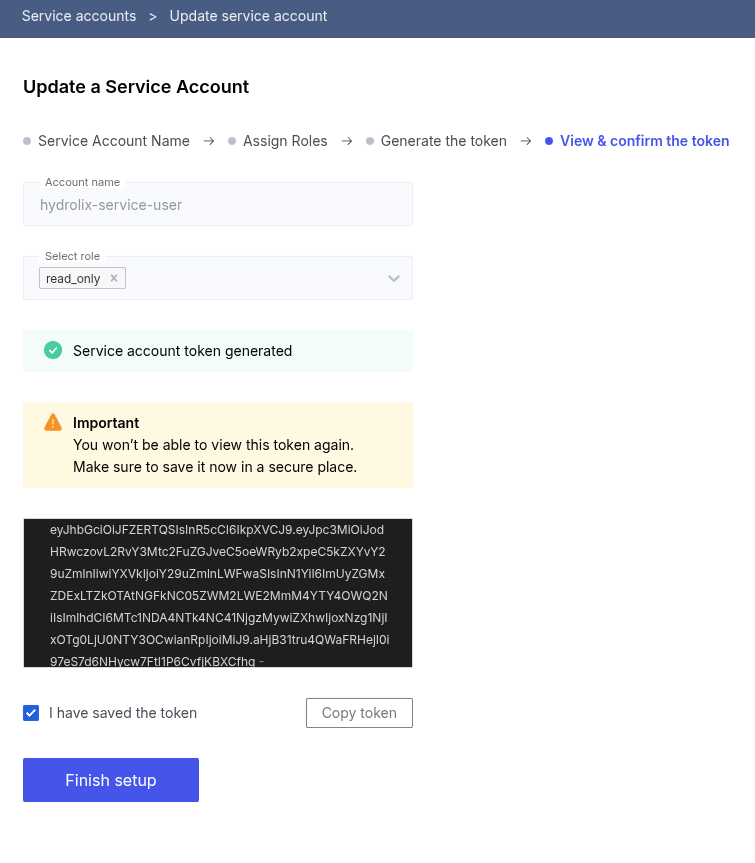
Token lifetime defaults to 365 days. It's not possible to set the expiry date and time using the UI. To specify a custom expiration date, see Issue token with API.
- Log in to the portal.
- Click Security in the left sidebar.
- Click Service Accounts in the top bar.
- Use the vertical ellipsis (⋮) to select Create token.
- Click Issue token.
- Collect and save the token somewhere safe. You won't be able to retrieve the token after leaving this page.
- Click checkbox for I have saved the token.
- Click Finish setup.
Issue token with the API⚓︎
The endpoint Issue service account tokens requires the account UUID in the path and supports an optional expiry date-time.
The optional expiry field must be a valid ISO-8601 formatted datetime at any granularity. The example shows a fully specified Zulu timestamp, but the API will also accept 2025-08-21.
The expiry value has no other constraints, allowing creation of very long-lived tokens.
Hydrolix version 6.3 and later accepts an optional description. Use it to record what a token is for, which helps when an account holds several. The value is at most 255 characters and can only be set when the token is created.
List token metadata⚓︎
Version availability
This feature was introduced in Hydrolix version 6.0.
Use the config/v1/service_account_tokens endpoint to see which tokens are still valid and plan rotation before a token expires.
To retrieve tracked tokens across all service accounts:
You can filter the results by providing the service account UUID as a query parameter:
You can further filter the results by revocation status and order them by issue time or expiry:
Revoke tokens⚓︎
Revoke tokens in the UI⚓︎
It's not possible to revoke or invalidate all tokens associated with a service account with the UI.
Consider these options instead:
- Revoke tokens with the API
- Create a new service account and token. Switch clients and applications. Delete the old service account
Revoke a single token with the API⚓︎
The endpoint to invalidate a service account token revokes one token associated with a service account. Successful revocation returns the token's identifying information and the field revoked: true.
Revoke all tokens with the API⚓︎
The endpoint Invalidate service account tokens revokes all tokens associated with the service account.
Upon success, the server returns HTTP status code 204 and no content.
View token issue and expiration dates⚓︎
Use the API to View Token Expiry for v6.0 and Above Tokens
The JWT decoder instructions work for viewing expiration dates of all tokens.
For untracked tokens issued using Hydrolix cluster versions earlier than v6.0, no identifying information remains in the cluster. Use the JWT decoder to determine expiry.
For tracked tokens issued using Hydrolix v6.0 and later, use the /service_account_tokens/ endpoint. See List token metadata.
Service account tokens are JSON Web Tokens (JWTs) that contain an expiration timestamp in the exp field. Decode the token locally using any JWT decoder.
The following examples extract the issue time and expiration time from a service account token stored in $HDX_SERVICE_TOKEN.
| Decode Token Expiration With Bash and jq | |
|---|---|
Example output:
Get tracked and untracked tokens for a service account⚓︎
Prior to v6.0, Hydrolix didn't store identifying information about issued tokens. These tokens are referred to as "untracked." Untracked tokens may still be valid and therefore can be used for authorization.
Any token returned by the list token metadata endpoint was created with a v6.0 or above Hydrolix cluster and is a tracked token.
To determine if a service account has any untracked tokens, use the GET /service_accounts endpoint.
For example:
Delete service accounts⚓︎
Delete in UI⚓︎
- Log in to the portal.
- Click Security in the left sidebar.
- Click Service Accounts in the top bar.
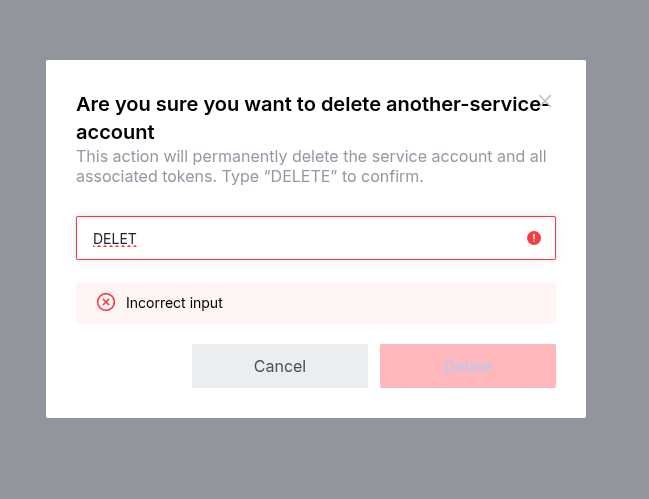
- Use the vertical ellipsis (⋮) to select Delete account.
- Confirm the deletion of the service account by typing
DELETEin the dialog.
Delete with API⚓︎
The endpoint Delete service account removes the service account.
Upon success, the server returns HTTP status code 204 and no content.
API reference information⚓︎
Performing all of the actions against the Config API in these examples requires a valid user authorization token.
API example variables⚓︎
| Shell variable | Contents |
|---|---|
$HDX_HOSTNAME |
The fully qualified domain name (FQDN) of the cluster |
$HDX_HYDROLIX_URL |
The base URL of the cluster |
$HDX_USER |
Username for authenticating to the API, to fetch an authorization token |
$HDX_PASSWORD |
Password for authenticating to the API, to fetch an authorization token |
$HDX_TOKEN |
A user token. User account must have service account permissions |
$HDX_SA_UUID |
The service account UUID, needed for API calls operating on a specific service account |
$HDX_SERVICE_TOKEN |
A service token returned in the response from the Create service account endpoint |
Obtain a user token to execute the examples below. For authentication methods and endpoint details, see Introduction to the Config API.
API workflow steps⚓︎
- Acquire an authorization token using Login to Hydrolix. For authentication patterns and token usage, see Acquire authorization tokens.
- Call Create service account with optional name and save the new UUID in the response.
- Assign roles to UUID with endpoint Add roles to user.
- Issue service account tokens.
- Invalidate service account tokens to block all access to the service account.
- Delete service account when the account is no longer needed.
Log in to the API⚓︎
Get the bearer token, which is good for the next 24 hours, to authenticate future API calls. This command assumes you've set the $HDX_HOSTNAME, $HDX_USER, and $HDX_PASSWORD environment variables:
Verification steps⚓︎
Verify the token is honored by using the Return information about the authenticated user endpoint. This endpoint reports information for the account linked to the token.
Other examples on this page show the user creating the service account and its tokens which are steps that require a user authorization token.
In this step, test with a service account token.
Troubleshoot⚓︎
- Ensure that the user attempting to manage service accounts has the required permissions.
- Ensure that the service account has appropriate permissions. Access is enforced at time of use, so changing roles assigned to an account can be tested without changing an existing token.
- When creating a service account, if you receive a
400response code, ensure the service account conforms to the service account name restrictions. - Clusters running Hydrolix
v6.0and above with service accounts whose names exceed 64 characters can't downgrade tov5.11or below. Operators must remove or rename those accounts before downgrading. See v6.0 downgrade restrictions