Install and configure
Install Hydrolix Search from Splunkbase.
In Splunk, go to Apps > Find More Apps, search for Hydrolix Search, and click Install. The installation may require logging in to Splunkbase with a Splunk account.
Required Splunk permissions⚓︎
To run queries, users need the search and list_storage_passwords capabilities.
Assign a user with the admin or sc_admin role to provide the required access.
For more access control, create a custom role:
-
Create a Splunk role (
hdxsearch_writein this example) with the following permissions:list_storage_passwordsedit_storage_passwordsadmin_all_objects
-
Add this stanza to the
metadata/local.metafile:metadata/local.meta This stanza grants write access to Hydrolix credential storage. The
admin,sc_admin, andpowerroles are pre-defined in Splunk;hdxsearch_writeis a custom role. Only roles listed underwritecan use the setup page to add or update credentials.
Assign a user the hdxsearch_write role to add Hydrolix cluster credentials.
Add and configure clusters⚓︎
Configure one or more Hydrolix clusters to make them available as data sources in Splunk.
Set cluster credentials⚓︎
After installation, go to Apps > Manage Apps, find Hydrolix Search in the list, and click Set up.
-
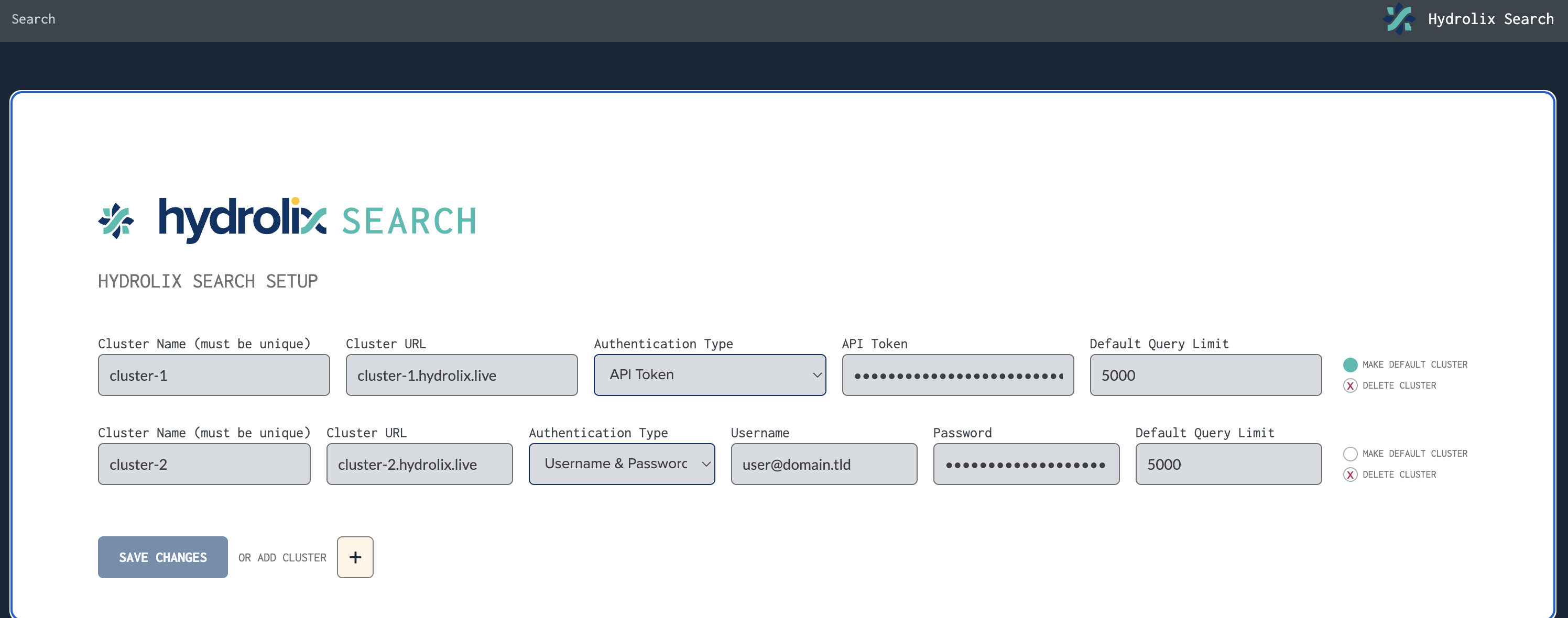
Select the authentication method: user credentials or a service account token. For information on creating a service account and associated tokens, see Manage Service Accounts.
-
Fill in the configuration fields:
Field Name Description Example Cluster Name The name used to refer to this cluster in Splunk Search Processing Language (SPL) queries cluster-1Host:Port The hostname (and optional port number) of the Hydrolix cluster hostname.hydrolix.live:443Username The username for authenticating with the Hydrolix cluster user@domain.tldPassword The password for the above user example-passwordAPI Token The token used for authorization to a Hydrolix cluster which is associated with a service account. See authorization tokens for more information. eyJhbGci...Default result count limit The maximum number of records to retrieve per query (unless overridden by the query) 5000Splunk Cloud: Use port 443 or don't specify a port
The default network rules for Splunk Cloud prohibit outbound TCP connections on port
8088. Configure port443or omit a port entirely. Configuring port8088may result in404responses in the Splunk console when querying the Hydrolix cluster. -
Click MAKE DEFAULT CLUSTER on the right side of the cluster row to set it as the default.
- (Optional) Choose OR ADD CLUSTER and fill in the configuration fields for each additional cluster.
- Select SAVE CHANGES. Saving changes overwrites any existing settings.
Splunk redirects to the query screen of the Hydrolix Search for Splunk application.
Configure proxy⚓︎
To configure per-cluster proxy settings for Splunk instances that connect to Hydrolix clusters through an HTTP proxy:
-
Edit
$SPLUNK_HOME/etc/apps/hdxsearch/local/hdxsearch.conf.- Create the file if it doesn't exist.
-
Add a
[proxies]stanza with aproxieskey containing a JSON array. Each entry in the array maps one cluster to one proxy:
Each proxy entry supports the following fields:
| Field | Required | Description |
|---|---|---|
cluster |
Yes | The cluster name as configured on the setup page. Must match exactly. |
protocol |
Yes | The proxy protocol: http or https. |
host |
Yes | The hostname or IP address of the proxy. |
port |
Yes | The port number of the proxy. |
user |
No | Username for proxy authentication. |
password |
No | Password for proxy authentication. |
To configure proxy authentication, include the user and password fields:
| local/hdxsearch.conf | |
|---|---|
To route different clusters through different proxies, add multiple entries to the array:
| local/hdxsearch.conf | |
|---|---|
Clusters with no matching entry in the proxies array connect directly without a proxy.
Restart Splunk after saving changes to hdxsearch.conf for the configuration to take effect.
Reconfigure an existing cluster⚓︎
- Go to Apps > Manage Apps.
- Type Hydrolix in the search box and under Actions, click Set up.
The cluster configuration screen opens, populated with the currently-configured clusters.