Set up Kibana
Hydrolix includes an in-cluster Kibana integration that deploys Kibana, Kibana Gateway, and Elasticsearch together. It translates Elasticsearch queries to SQL and routes them to Hydrolix, making Hydrolix tables queryable as Elasticsearch indices.
This page covers enabling, configuring, and deactivating the integration on a cluster. It's intended for cluster administrators. To access and query Kibana once it's enabled, see Use Kibana.
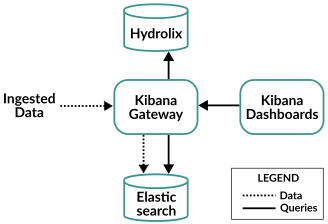
Kibana Gateway was previously called Quesma
Hydrolix acquired the database proxy software from Quesma in September 2025. Older versions of Hydrolix may have artifacts containing the word quesma.
Before you begin⚓︎
Ensure you have these prerequisites:
- Kubernetes
cluster-adminprivileges as described in the Kubernetes documentation - The names of the Hydrolix tables you want to query in Kibana
- Sufficient resources in your Kubernetes cluster to accommodate new Kibana, Kibana Gateway, and Elasticsearch pods
Install Kibana Gateway⚓︎
-
Install the Elasticsearch Custom Resource Definitions (CRD) and operator. With
kubectlconfigured for your Hydrolix cluster, run these commands:Install Elasticsearch CRD and operator See the Elasticsearch documentation for details.
-
Enable the integration by adding
Kibanato the operator'sdata_visualization_toolsarray field in the HydrolixCluster spec. The operator deploys the Kibana, Kibana Gateway, and Elasticsearch pods only whenKibanais present in this array. -
Wait for the pods to start. The
elasticsearch,kibana-gateway, andkibana-kbpods can take several minutes to start. Verify the pods are running:Check pod status Expected output showing Running status:
Once the pods are running, see Use Kibana to access Kibana and create data views.
Configure Kibana Gateway⚓︎
Kibana Gateway can expose additional Hydrolix tables and communicate with Kibana instances running outside the cluster.
Additionally, it detects all summary tables in configured projects by querying the Hydrolix Config API. Once the integration is active, Kibana can query those summary tables without additional configuration, the same as any other index. See Use Kibana. This feature was introduced in Hydrolix version 5.10.
Query additional projects and tables⚓︎
This feature was introduced in Hydrolix version 5.9.
By default, Kibana Gateway exposes data in the hydro.logs table to Kibana. To expose additional tables, add their projects to the HydrolixCluster config spec. For example, to expose the hydro.monitor and cloudflare.logs tables in Hydrolix, the cluster configuration would be:
| Example to Enable Auto Discovery for Multiple Projects | |
|---|---|
Kibana Gateway discovers all tables in the listed projects.
Table auto discovery limitation
Auto discovery ignores identically-named tables in different projects. It writes a WARN log in the kibana-gateway container for the colliding table names and doesn't expose any corresponding Elasticsearch index. For example, if both hydro and cloudflare projects hold a table called logs, neither is exposed.
To expose a table with a colliding name, create a mapping to a unique index name in the indexes config.
Customize each table using the following fields in the HydrolixCluster config spec:
Example configuration using the hydro.logs, sample_project.sample_table, and cloudflare.logs tables:
| Example configuration with sample table | |
|---|---|
See Why differentiate the table name and index name to understand why the logs table is mapped to a cflogs index rather than a logs index.
Tunables⚓︎
The Kibana Gateway supports additional configuration properties.
default_query_time_range⚓︎
Type: string | Added v6.0
The default time range applied to queries that don't already specify one. This property sets the global default for all tables unless a table overrides it with the query_time_range tunable.
Default: 24h
query_time_range⚓︎
Type: string | Added v6.0
A table-level override for default_query_time_range. When set on a specific table, this value takes precedence over the global default for that table. Like default_query_time_range, it applies only to queries that don't already specify a time range.
Default: null (falls back to default_query_time_range)
Example
config_api_version⚓︎
Type: string | Added v6.4
The Hydrolix Config API version that Kibana Gateway targets. The operator passes a version-less Config API address to Kibana Gateway, which appends this value on each request. Set it to v1 on clusters where the v2 Config API endpoints aren't serving correctly.
Accepted values are v1 and v2.
Default: v2
elasticsearch_url⚓︎
Type: string
The Elasticsearch endpoint that Kibana Gateway sends queries to for indexes it doesn't map to a Hydrolix table. Change it to reach an Elasticsearch instance other than the one the integration deploys in the cluster.
This setting predates the kibana_gateway_config name. On clusters older than Hydrolix version 5.9, set it as quesma_config.elasticsearch_url.
Default: http://elasticsearch-es-http:9200
Example
Why differentiate the table name and index name⚓︎
When two or more projects contain tables with the same name, such as hydro.logs and akamai.logs, you must give each table a unique index name in the indexes config. In Elasticsearch and Kibana, index names must be unique, so two logs tables can't both appear as a logs index, and auto discovery drops both unless you disambiguate them. Map each table to a distinct index name to present them under separate names:
| Different Table Name and Index Name | |
|---|---|
Enable public access to Kibana Gateway⚓︎
To allow external clients, such as Kibana running outside the cluster, to communicate with Kibana Gateway, enable public access using this configuration:
| Enable Kibana Gateway public access | |
|---|---|
This configuration exposes Kibana Gateway at kibana-gateway.hostname.hydrolix.live. The hdx-elastic-user Kubernetes secret holds the username and password. To decode it, see Managing Secrets using kubectl.
The operator creates the public route only when both enable_public_access and kibana_security_enabled are true. Because kibana_security_enabled defaults to false, setting enable_public_access on its own leaves Kibana Gateway without a public endpoint. Setting kibana_security_enabled to false also turns off authentication on the Kibana Gateway query port.
These tunables affect the Kibana Gateway endpoint only. The cluster routes the Kibana web interface at /kibana either way, and Use Kibana covers how kibana_security_enabled changes its sign-in.
Deactivate Kibana⚓︎
To remove the Kibana integration:
- Edit your
hydrolixcluster.yamlfile and remove thedata_visualization_toolsandkibana_gateway_configsections. -
Apply the configuration changes:
Apply deactivation changes -
Remove the Elasticsearch CRDs and operator: