IO River
IO River is a multi-CDN platform provider that orchestrates and optimizes traffic across multiple CDNs.
IO River supports pushing unified logs from all underlying CDNs to an a Hydrolix HTTP endpoint. These logs contain structured fields such as request timestamps, client IPs, cache status, and response metrics, enabling visibility into performance, reliability, and content delivery for each underlying CDN.
Follow the instructions on this page to stream IO River logs into Hydrolix.
Setup steps⚓︎
There are some prerequisites and three major steps covered in this document. Following these steps will result in an integrated setup between IO River and a running Hydrolix cluster:
- Before you Begin: Complete these prerequisites first
- Configure a Hydrolix Transform: Prepare Hydrolix to receive and transform IO River log data
- Configure IO River log streaming: Add Hydrolix as a log target in IO River to send HTTP logs to Hydrolix
- Verification: Follow these steps to verify the integration is working correctly
Before you begin⚓︎
You will need a IO River account and a running Hydrolix deployment. Follow the instructions for your preferred deployment method if you have yet to deploy Hydrolix. From your running Hydrolix cluster, you will need the following information:
Gather the following information:
| Item | Description | Example value | How to obtain this information |
|---|---|---|---|
| Cluster ingest URL | This is the hostname and ingest endpoint of your Hydrolix cluster. | https://hostname.hydrolix.live/ingest/event |
The value of hydrolix_url in your hydrolixcluster.yaml including the preceding https://. |
| Table name | The destination table in the Hydrolix cluster for IO River CDN logs. Specified in the format: project_name.table_name. |
ioriver_project.ioriver_cdn_logs |
See create a table if you need to create a Hydrolix table in which to store your IO River CDN logs. |
| Basic authentication credentials | The username and password to authenticate with the Hydrolix endpoint and grant streaming ingest access to the destination table. | Username: hydrolixPassword: $TRAEFIK_PASSWORD |
For a more thorough explanation of basic authentication as it pertains to a Hydrolix cluster, see Enable Basic Authentication. |
| Table access token | For tables with token-based authentication enabled, this token is required. | Example value: 7bebd8ebsfalkj2j3jk |
Enable token-based authentication for your table and note the generated token. |
Keep these values on hand for later steps within this guide.
Get started⚓︎
There are two steps covered within this document. Following these steps will result in an integrated setup between IO River and a running Hydrolix cluster:
Configure a Hydrolix transform⚓︎
Register a Hydrolix transform. The transform defines a schema to map fields from the IO River logs onto the Hydrolix table.
Using the Hydrolix transform for IO River, see Publish Transform for instructions.
You have two options for the publishing the transform:
-
UI: Registering a transform through the UI requires the following information:
- Project name
- Table name
- The contents of the
output_columnsproperty
-
API: Registering a transform through the API requires the following information:
- Project ID
- Table ID
- The entirety of the IO River transform json
If the transform you have created is the only one for your table, it will become the default transform for the table. If you have multiple transforms configured for the destination table, and the transform registered for IO River isn't the default transform, you should specify the transform for this data as a query parameter in the endpoint URL.
Verify that the Hydrolix transform exists. You can do so using either method:
- UI: In the UI by navigating to Data in the left-hand nav, selecting the table from under the Tables tab, and locating the transform name under Table transforms.
- API: Verify the transform you created is returned as part of the response from the Get transforms endpoint.
Configure IO River log streaming⚓︎
Follow these steps to configure IO River log streaming to send data to your Hydrolix cluster:
- From the IO River portal, select Logs then select Log Destinations from the sidebar.
- Select the Add Destination button.
-
Fill out the form with these values:
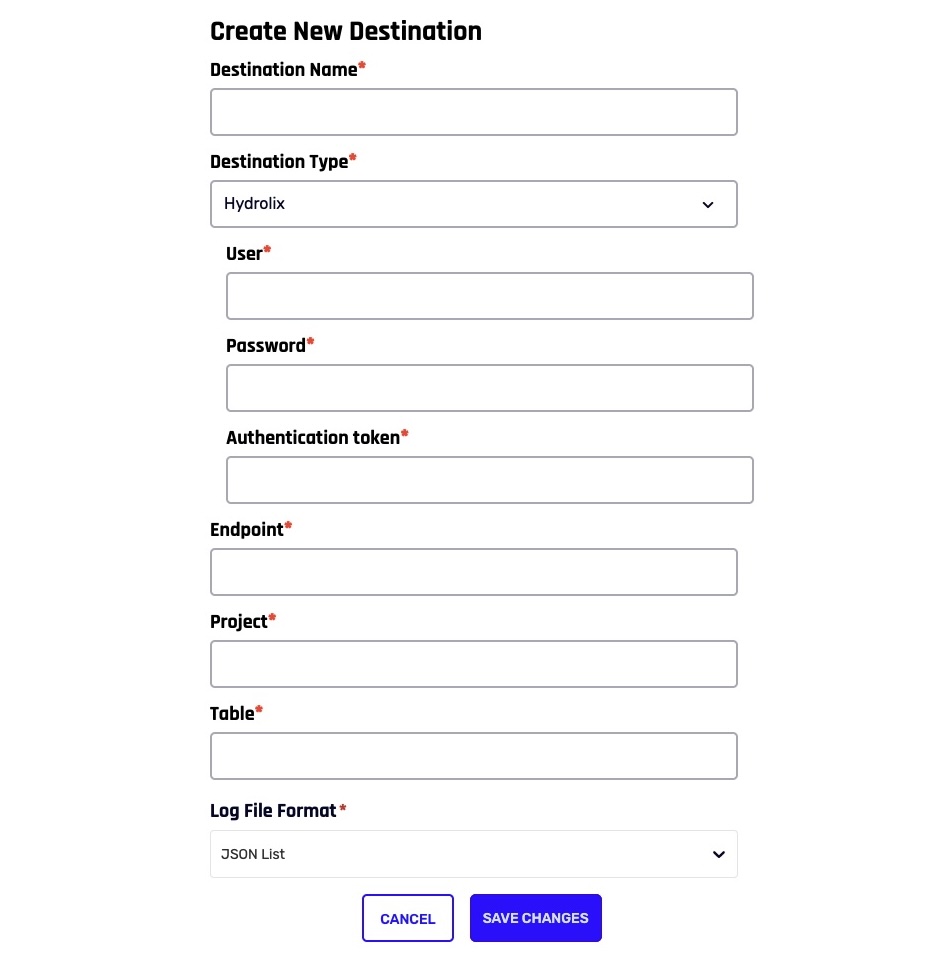
-
Destination Name: Hydrolix (or choose your own)
- Destination Type: Hydrolix
- User: your username, to authenticate with the Hydrolix endpoint
- Password: your password, to authenticate with the Hydrolix endpoint
- Authentication Token: the table access token
-
Endpoint: Enter the following URL, replacing the
{}fields:Hydrolix HTTP Streaming Ingest endpoint -
Project: Your project name
- Table: Your table name
- Log File Format: JSON List
Verification⚓︎
To verify that the integration is working correctly:
- Wait a few minutes for data to start flowing from IO River to Hydrolix.
- In the Hydrolix UI, navigate to the query interface. (
https://hostname.hydrolix.live/queries/). -
Run a simple query against your able. For example:
-
Verify that you see results similar to your data in IO River.
Going further⚓︎
- For more information on querying your Hydrolix cluster, see ClickHouse SQL.
- Explore your IO River logs in Grafana dashboards.
Troubleshoot⚓︎
If you encounter issues with the integration:
Verify your Hydrolix bearer token is valid and hasn't expired⚓︎
- If you receive a
401 Unauthorizedresponse, the authorization token may have expired. Retrieve a new one using the Hydrolix login API endpoint.
Review the ingest logs in Hydrolix for errors⚓︎
- View and explore cluster logs on the cluster's System Health page.
- You can also query cluster logs directly with Hydrologs.
Check ingest latency in table health⚓︎
Table health reports Ingest Latency for each table. A latency measured from the epoch (January 1st, 1970 at 00:00:00 UTC) means the table has never received data.
A recent latency doesn't prove your source is working. If the table also receives other streams, their data keeps the figure low on its own.
Ensure your transform correctly maps the fields you expect to see⚓︎
- The Hydrolix transform provided acts as a schema for storing HTTP requests from IO River log fields in Hydrolix. If you forward another data set to Hydrolix, see the Hydrolix documentation on transform output columns to modify the transform to correctly map the data you are sending.