Databricks Deployment
Overview⚓︎
Databricks is a unified, open analytics platform built on top of Apache Spark that offers features like a collaborative workspace, data lakehouse capabilities, and integrated machine learning workflows. With the help of the Hydrolix Connector for Apache Spark, you can improve query speed and storage costs by using Hydrolix as the backing store for your Databricks cluster.
Requirements⚓︎
Dependencies⚓︎
- Hydrolix Cluster: A running Hydrolix cluster with a version compatible with your connector version. See the compatibility matrix. Find Hydrolix deployment instructions for your preferred cloud provider (AWS, Google, Linode, or Microsoft).
- Databricks Spark Cluster: A Databricks account with a deployed Spark cluster.
Hydrolix credentials⚓︎
Setup requires credentials for a Hydrolix account that has the required permissions. These credentials may be either:
- A username and password for a Hydrolix user account
- A service account token. This requires connector v3.4.0 or later. See Service account token setup.
Service account token setup⚓︎
Run the following commands in one terminal session. They require curl, jq, and a super admin account to perform the API calls. Replace the cluster URL and the admin credentials.
-
Log in and get the org UUID:
Log in -
Create a role with the permissions listed in Required user permissions. This body is for connector v3.5.0 and later; for connector v3.4.0 and earlier, use the role body from that section instead.
-
Create a service account and assign the role to it:
-
Issue the token:
The command prints the service account token. Store it in your platform's secrets manager and set it as the service_account_token connector property. Note the token's expiry for rotation.
For more detail on service accounts, roles, and tokens, see Manage Service Accounts.
Required user permissions⚓︎
The connector requires specific access to query a Hydrolix cluster. Assign the following permissions to the account whose credentials you supply, whether a service account or a user account. Super admin access isn't required.
The required set depends on the connector version.
| Permission name | Level |
|---|---|
view_org, view_project, view_hdxstorage |
Global |
config_blob_org |
Org |
catalog_urls_table |
Org, project, or table |
view_table, view_view, view_transform |
Org, project, or table |
select_sql, select_catalog_sql, select_metadata_sql |
Org, project, or table |
show_databases_sql, show_tables_sql, show_columns_sql |
Org |
dictGet_sql, view_function |
Org |
| Permission name | Level |
|---|---|
view_org |
Global |
config_blob_org, view_hdxstorage |
Org |
catalog_urls_table |
Org, project, or table |
view_table, view_view, view_transform |
Org, project, or table |
select_sql, select_catalog_sql, select_metadata_sql |
Org, project, or table |
show_databases_sql, show_tables_sql, show_columns_sql |
Org |
dictGet_sql, view_function |
Org |
To restrict the account to specific data, scope the project-or-table-level permissions to those projects or tables instead of the org. To query multiple tables in the same Hydrolix project, scope those permissions to the project level instead of granting the permissions for each table.
Grant the global-level permissions through the Config API
The permissions listed at the global level must be granted at that level. Org-level grants of them aren't sufficient: without the global grants, queries fail with config not loaded, yet or status code: 403, reason phrase: Forbidden.
Create the role with the Config API using a policy that has no scope fields, as in the request bodies above. The API stores a policy without scope fields as a global-level policy.
Runtime Requirements⚓︎
Java Runtime: Must use Java 11 or later
Databricks cluster compatibility⚓︎
The connector JAR is built for Scala 2.12, so it requires a Scala 2.12 Databricks runtime.
Databricks Runtime 16.4 LTS is the last Scala 2.12 runtime: 17.x and later are Scala 2.13/Spark 4 and aren't supported. Note that 16.4 LTS is offered in two variants: choose 16.4 LTS (Scala 2.12), not the Scala 2.13 variant.
Use Dedicated access mode, labeled Dedicated (formerly: Single user) in the Databricks UI, with the Unrestricted policy:
| Runtime version | Supported | Access mode: Dedicated (formerly: Single user) | Access mode: Standard (formerly: Shared) | Notes |
|---|---|---|---|---|
| 17.x and later | ✗ | -- | -- | Scala 2.13 / Spark 4 runtimes; not compatible with the Scala 2.12 connector JAR. |
| 16.4 LTS (Scala 2.12) | ✓ | ✓ | ✗ | Defaults to Java 17; no JNAME setting needed. |
| 15.4 LTS | ✓ | ✓ | ✗ | Works with Java 17. Set the environment variable JNAME=zulu17-ca-amd64. |
| 14.3 LTS | ✓ | ✓ | ✗ | Works with Java 11. Set the environment variable JNAME=zulu11-ca-amd64. |
The connector must be registered under the spark_catalog name. See Catalog name.
Setup steps⚓︎
- Create a Summary Table of the Data You Will Be Querying
- Set the Hydrolix Connector Parameters
- Set the JNAME Environment Variable
- Upload and Install the Hydrolix Connector for Apache Spark
At which point you can start querying your data using Spark.
Optional steps are the following:
Create a summary table⚓︎
Create a summary table, including a transform, of the data you plan to query. Using a summary table allows you to perform some aggregation operations in the cluster, effectively reducing query time and result data set size. Instructions for creating a summary table using the Hydrolix UI and API are on the Summary Tables page. While this step can be skipped, it's highly recommended.
The general structure of summary transforms and their limitations are explained in this section on creating summary transforms.
Set the Hydrolix connector parameters⚓︎
The Hydrolix Connector for Apache Spark requires some configuration parameters. Set these parameters in the Databricks UI on your existing Spark cluster. Your Hydrolix credentials, which are included in these parameters, should be stored in the Databricks Secrets Manager.
Catalog name⚓︎
Register the connector as spark_catalog, replacing Spark's default catalog.
Databricks requires this name. Compute ignores custom catalog names, so under any other name the catalog never appears, and queries fail with catalog not found.
Authentication mode⚓︎
The connector authenticates to the Hydrolix cluster with one of two kinds of Hydrolix credentials:
- Hydrolix user account: Set
usernameandpasswordto the Hydrolix user account credentials. - Service account token: Set the
service_account_tokenproperty.usernameandpasswordare ignored.
Store credentials in your platform's secrets manager rather than pasting them into the cluster configuration.
Service account tokens require connector v3.4.0 or later
Connector versions before v3.4.0 (up to and including v3.0.0-v5.6.0) must authenticate to the cluster's Config API with username and password. Service account tokens won't work.
Spark configuration is dynamically reloaded for every query
The Hydrolix Connector reloads its configuration for every query. To change the configuration inside spark-shell or a Jupyter notebook, set spark.conf.set("some_setting", "value").
Verify user permissions
Make sure the user supplied in the Spark properties has the required permissions for the underlying Hydrolix cluster.
Config API version⚓︎
By default, connectors v3.5.0 and later read cluster metadata through Hydrolix Config API v2 when the cluster serves it and use v1 otherwise.
Set the optional api_version setting to 1 to use v1 regardless, for example to keep the permission set of connector v3.4.0. A version you set is used as is: if the cluster doesn't serve it, the session fails to start.
Connector parameters⚓︎
| Property | Value | Description |
|---|---|---|
spark.sql.catalog.spark_catalog |
io.hydrolix.connectors.spark.SparkTableCatalog |
The fully qualified name of the class to instantiate for the connector's catalog. The catalog name must be spark_catalog. See Catalog name. |
spark.sql.extensions |
io.hydrolix.connectors.spark.SummaryUdfExtension |
A comma-separated list of fully-qualified SQL extension classes -- using summary tables requires including SummaryUdfExtension in this set. |
spark.sql.catalog.spark_catalog.cluster_url |
https://hostname.hydrolix.live |
The Hydrolix cluster URL. This is the recommended way to configure the connection. If this field is set, the legacy jdbc_url and api_url fields are unnecessary and will be ignored. |
spark.sql.catalog.spark_catalog.username |
{{secrets/path/to/username}} |
Username to log into the Hydrolix cluster. |
spark.sql.catalog.spark_catalog.password |
{{secrets/path/to/password}} |
Password to log into the Hydrolix cluster. |
spark.sql.catalog.spark_catalog.service_account_token |
{{secrets/path/to/token}} |
Introduced in connector v3.4.0. Service account token used to authenticate to the Hydrolix cluster as an alternative to username/password. When set, username and password are ignored. |
spark.sql.catalog.spark_catalog.jdbc_protocol |
https |
Optional. Defaults to https if not provided. Used with the cluster_url and jdbc_port configs to derive the JDBC URL. |
spark.sql.catalog.spark_catalog.jdbc_port |
8088 |
Optional. Defaults to 8088 if not provided. Used with the cluster_url and jdbc_protocol configs to derive the JDBC URL. |
spark.sql.catalog.spark_catalog.hdx_partitions_per_task |
3 |
Optional. Defines how many Hydrolix partitions each Spark task reads. Default value is 3. For example, if partition planning returns 60 Hydrolix partitions, the query launches 20 Spark tasks, each reading 3 partitions. Setting this to 10 launches 6 Spark tasks, each reading 10 partitions. A larger value means fewer, longer-running tasks. |
spark.sql.catalog.spark_catalog.max_concurrent_partitions |
3 |
Optional. Introduced in connector v3.5.1. Sets how many Hydrolix partitions each of the connector's read streams opens concurrently. This is the same quantity the hdx_query_max_concurrent_partitions query option controls on query peers. Default value is 3. Raising it takes effect only when hdx_partitions_per_task is raised as well. No recommended value has been established. |
spark.sql.catalog.spark_catalog.api_version |
2 |
Optional. Set to 1 to use Config API v1 and the permission set of connector v3.4.0. Left unset, the connector uses the version the cluster serves. See Config API version. |
spark.sql.catalog.spark_catalog.jdbc_url |
jdbc:clickhouse:https://hostname.hydrolix.live:8088?ssl=true |
Legacy. Prefer cluster_url. JDBC URL of the Hydrolix query head. Note that the ClickHouse JDBC driver requires a valid database name in the URL, but the connector will read any database the user has access to. This parameter is ignored when cluster_url is set. |
spark.sql.catalog.spark_catalog.api_url |
https://hostname.hydrolix.live/config/v2/ |
Legacy. Prefer cluster_url. URL of the Hydrolix config API, must end with /config/v2/ or /config/v1/ including the trailing slash; the connector adjusts the version segment as needed. This parameter is ignored when cluster_url is set. |
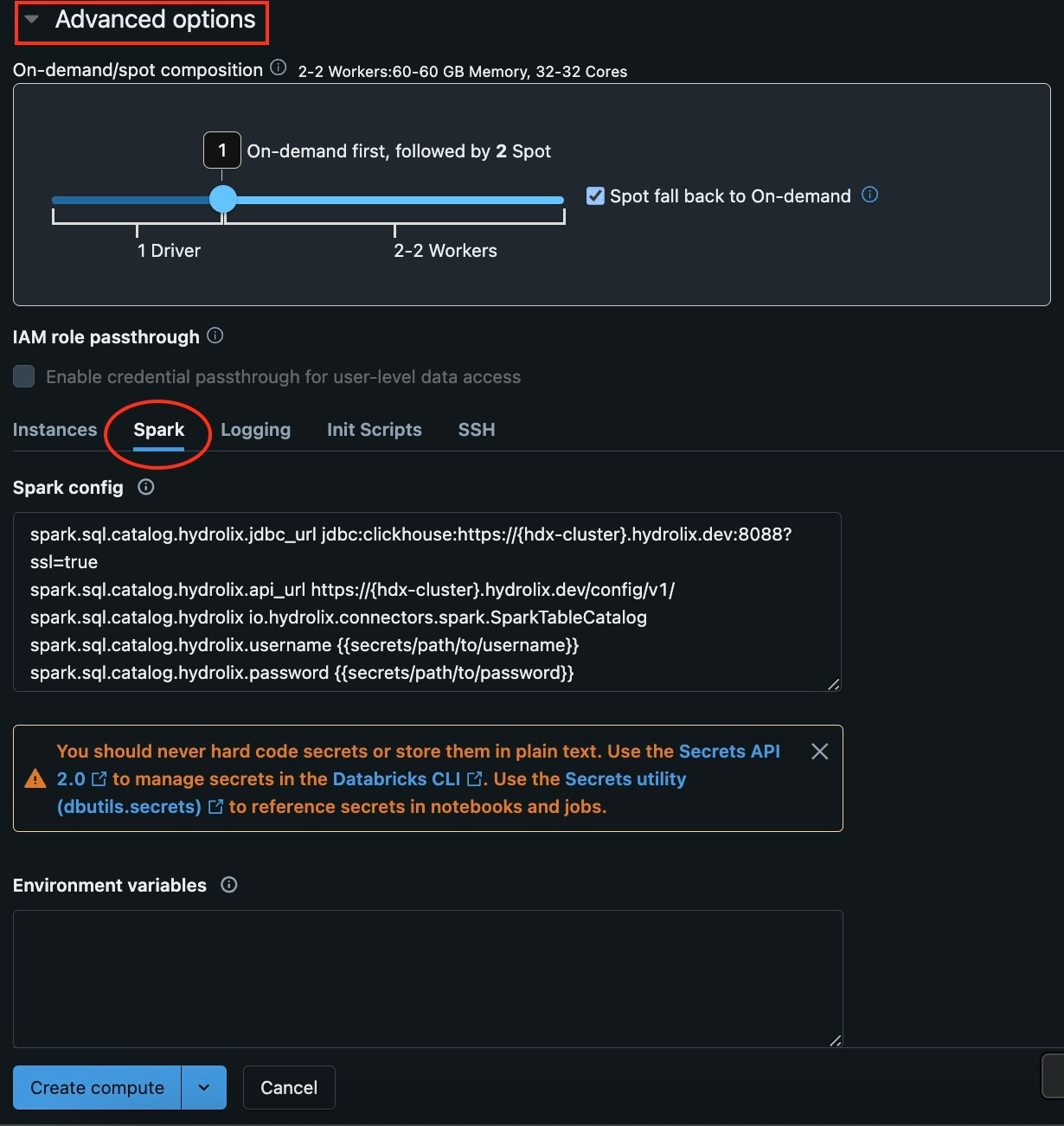
To set these parameters, expand the Advanced Options heading, open the Spark tab, and enter the key/value pairs into the Spark config. Each key should be separated from its value by a single space like the following (replacing with your Hydrolix cluster's values):
In the Databricks UI, the above configuration looks like this:
Set the JNAME environment variable⚓︎
Recent Databricks runtimes (16.4 and later) default to Java 17 and require no JNAME setting. For older runtimes, select the Java version with the JNAME environment variable as listed in the Databricks cluster compatibility table. For example, JNAME=zulu17-ca-amd64 for Java 17 on Databricks 15.4 or JNAME=zulu11-ca-amd64 for Java 11 on Databricks 14.3. Other JVM implementations may work with the Hydrolix Connector as long as they're Java 11 or later.
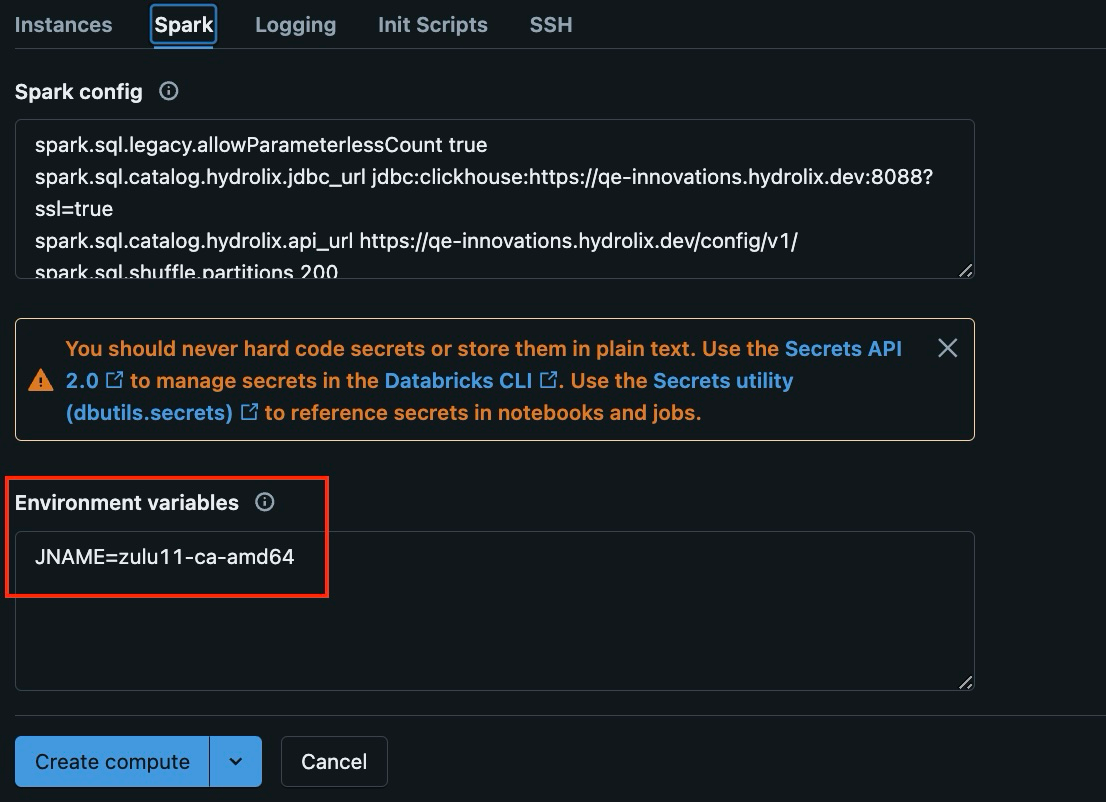
Click the Create Compute button to create your Spark cluster.
Upload and install the Hydrolix connector⚓︎
There are two options for installing the Hydrolix Connector JAR: from S3 or from a Unity Catalog Volume. After installation, you can analyze your Hydrolix data in Spark.
DBFS library installs are no longer supported
Databricks supports DBFS-hosted libraries only on Databricks Runtime 14.3 LTS and below. Use the S3 or Volumes methods below instead.
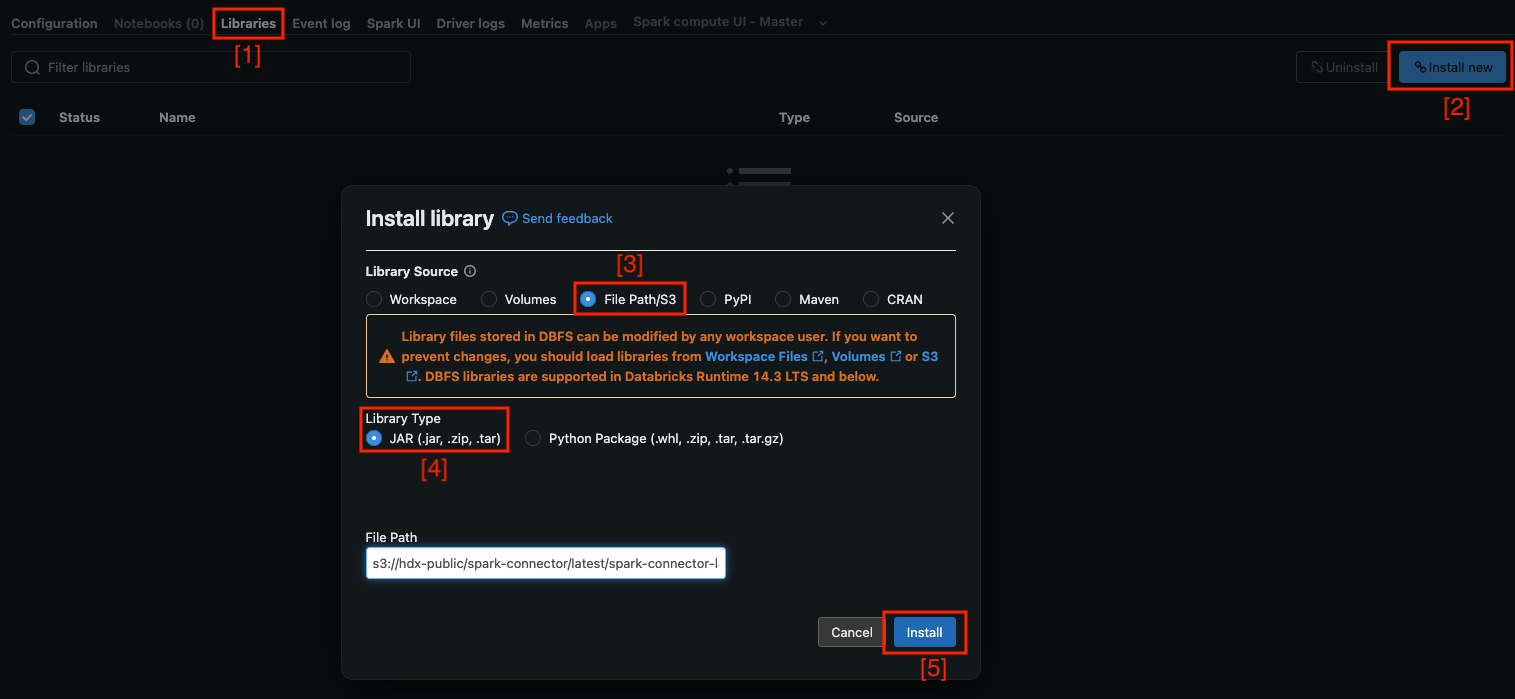
Install from an S3 bucket⚓︎
In your Spark Cluster's UI:
- Navigate to the Libraries tab and select Install new
- Select File path/S3 for Library Source and JAR for Library Type
-
Set File path to the following:
Hydrolix Connector URL, Latest Version -
Select Install
- Restart your cluster
Install the JAR from a volume⚓︎
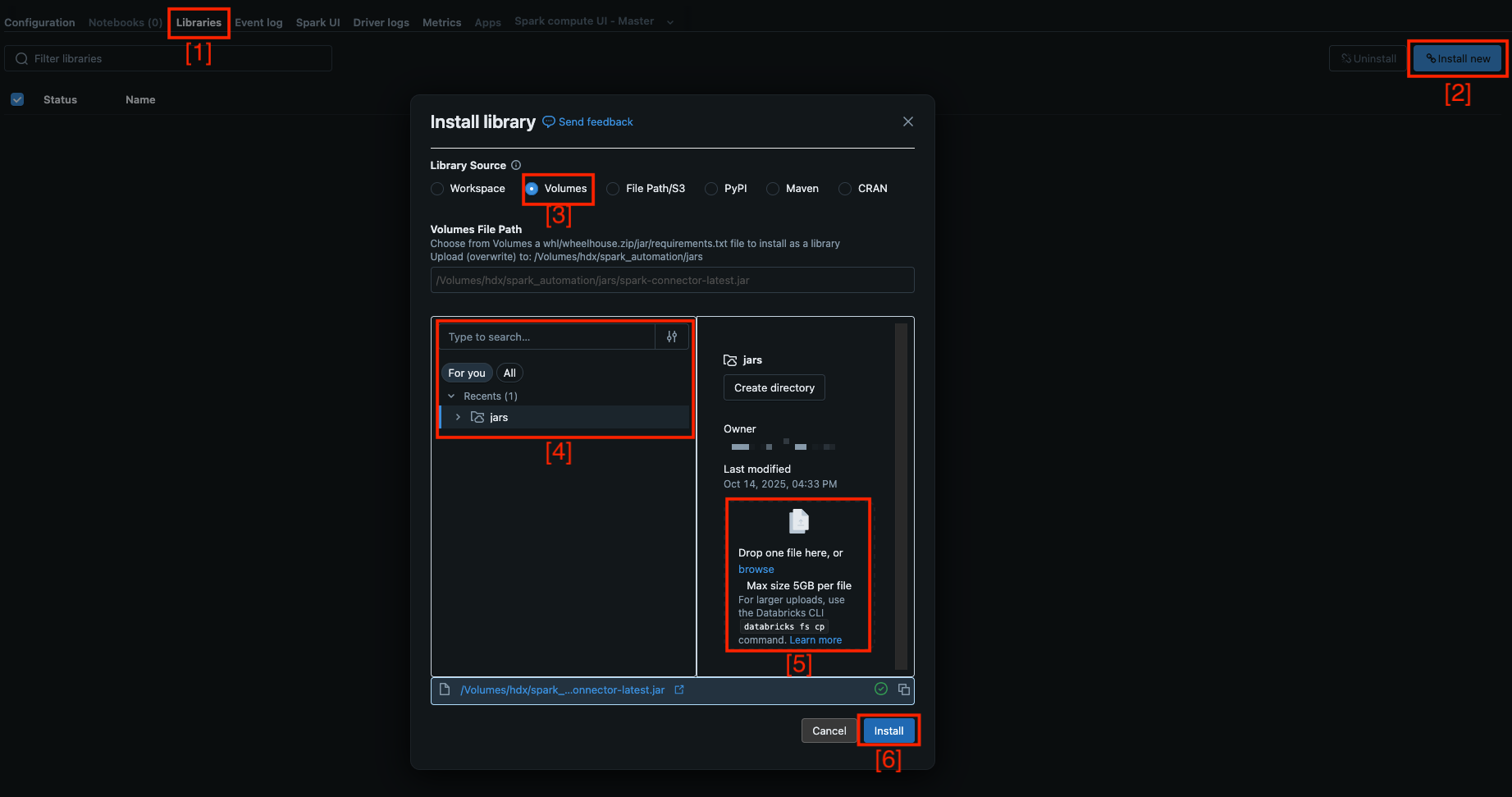
- Download the latest version of Hydrolix Connector JAR
- Navigate to the cluster's Libraries tab and select Install new
- Select Volumes for Library Source
- Navigate to the destination volume (
/Volumes/{catalog}/{schema}/{volume}). Then either select a JAR already present, or use Drop one file here, or browse to upload the downloaded JAR - Select Install
- Restart your cluster
(Google Cloud Platform only) Set Hydrolix cluster storage bucket credential⚓︎
If you have set up your Hydrolix cluster with a default GCP storage bucket and you would like to query your default bucket, follow the GCP setup instructions to configure a credential with your storage bucket before querying. This credential is required so the cluster can issue the presigned URLs the connector reads partitions through. GKE workload-identity credentials can't sign GCS URLs on their own.
Query⚓︎
After you have configured your cluster, you can use the Hydrolix Connector for Apache Spark in a Spark notebook.
To begin using the connector with a Spark notebook, you'll use one of the two commands depending on your use case:
- Python or Scala fragment:
sql("USE CATALOG spark_catalog") - SQL fragment:
USE CATALOG spark_catalog;
Alternatively, you can prepend each table you want to query from your Hydrolix back-end with spark_catalog..
Summary table query instructions⚓︎
Summary table queries have unique requirements.
Wrap summary aliases with hdxAgg()⚓︎
Wrap summary aliases in SELECT statements with hdxAgg(). For example, you might run the following to query both an aliased column (summary_column_alias) and a non-summary column (non_summary_column):
| Query with summary alias | |
|---|---|
You can read more about creating and querying summary tables in the Summary Tables documentation.
The hdxAgg() function resolves name conflicts between summary table alias columns and Spark function names. For example, count may be a column name in a summary table, but count() is also a pre-existing Spark function. Using the hdxAgg() function disambiguates the two.
The hdxAgg() function also resolves name conflicts between multiple summary tables. For example, one summary table might have count(timestamp) AS total in its definition while another might have count(distinct username) AS total in its definition. The hdxAgg() function disambiguates total() and ensures it works when querying either table.
Load the Hydrolix datasource⚓︎
Load the Hydrolix datasource. Doing so loads the required hdxAgg() function. The options for loading the Hydrolix datasource are:
- Run
USE CATALOG spark_catalog - Run any query against a non-summary table
- Run
io.hydrolix.connectors.spark.HdxUdfRegistry.enableSummaryTables(spark)
Summary table query instructions (v1.0.0 only)⚓︎
The v1.0.0 release of the Hydrolix Connector for Apache Spark has unique instructions for querying summary tables.
-
To enable querying the summary table you created during the Create a summary table step, run the following line in a Spark shell or in a PySpark session:
Register a summary table -
Reference any summary table column aliases using the syntax
summary_column_alias(). For example, suppose there is a summary table calledmy_project.my_summary_tablewhich includes the following in its definition:
This table can then be queried with:
| Query summary table with aliases | |
|---|---|
Example queries⚓︎
The following examples query the hydro.logs table directly rather than through a summary table. They use the spark_catalog catalog name, as Databricks requires.
Join Hydrolix tables with Unity Catalog tables⚓︎
On a Unity Catalog-enabled workspace, the connector is already registered as spark_catalog. See Catalog name. Therefore, joining Hydrolix data with Unity Catalog tables needs no extra connector configuration:
- Use Dedicated access mode (labeled Dedicated (formerly: Single user) in the Databricks UI) and Unrestricted policy in the cluster configuration.
- Reference Hydrolix tables through
spark_catalogand Unity Catalog tables through their own catalog names (for examplemain.schema.table).
The correct syntax for switching the session to the Hydrolix catalog is:
Replace Spark's default catalog
Registering the connector as spark_catalog replaces Spark's default catalog with the Hydrolix implementation. Every spark.sql.catalog.* line must consistently use spark_catalog.
Now you can join Hydrolix data with any other tables including Unity Catalog tables.
Group access to Unity Catalog tables
If a dedicated cluster is created for a user group, access to Unity Catalog tables is extended based on the group permissions, not on those of individual group members. In other words, the entire group must have access to the Unity table.
Troubleshoot⚓︎
Authentication error⚓︎
If you see "access denied" errors from the Hydrolix database when making queries, ensure the cluster username and password are correct, and make sure that user has query permissions.
User permissions⚓︎
Partitions in a table might be distributed across different storage buckets.
If the user set in the Hydrolix Connector configuration doesn't have the required permissions for the table's storage, the query fails and returns an error response.
Error querying summary tables⚓︎
If a user sees this error:
| Unresolved routine error | |
|---|---|
The fix is to load the Hydrolix datasource. You can do so by doing any one of the following:
- Run
io.hydrolix.connectors.spark.HdxUdfRegistry.enableSummaryTables(spark). This performs a global setup step which creates thehdxAggfunction. - Run
USE CATALOG spark_catalog. This loads the Hydrolix datasource. - Run any query against a non-summary table. This loads the Hydrolix datasource.
Forbidden (403) errors after upgrading the connector⚓︎
If queries fail with HttpResponseException: status code: 403, reason phrase: Forbidden after upgrading to connector v3.5.0 or later, the account is missing a global-level permission that the newer connector requires. Grant view_org, view_project, and view_hdxstorage at the global level as described in Required user permissions.
Limitations⚓︎
Read-only⚓︎
The Hydrolix Connector for Apache Spark is read-only. ALTER and INSERT statements aren't supported.
Related information⚓︎
- Supercharge Your Hydrolix Data in Databricks With Spark - How to use the Hydrolix Spark Connector to analyze Hydrolix data in Databricks notebooks
- Unlocking New Insights with Hydrolix and the Unity Catalog - How to register Hydrolix as a data source in Databricks Unity Catalog for governed access